
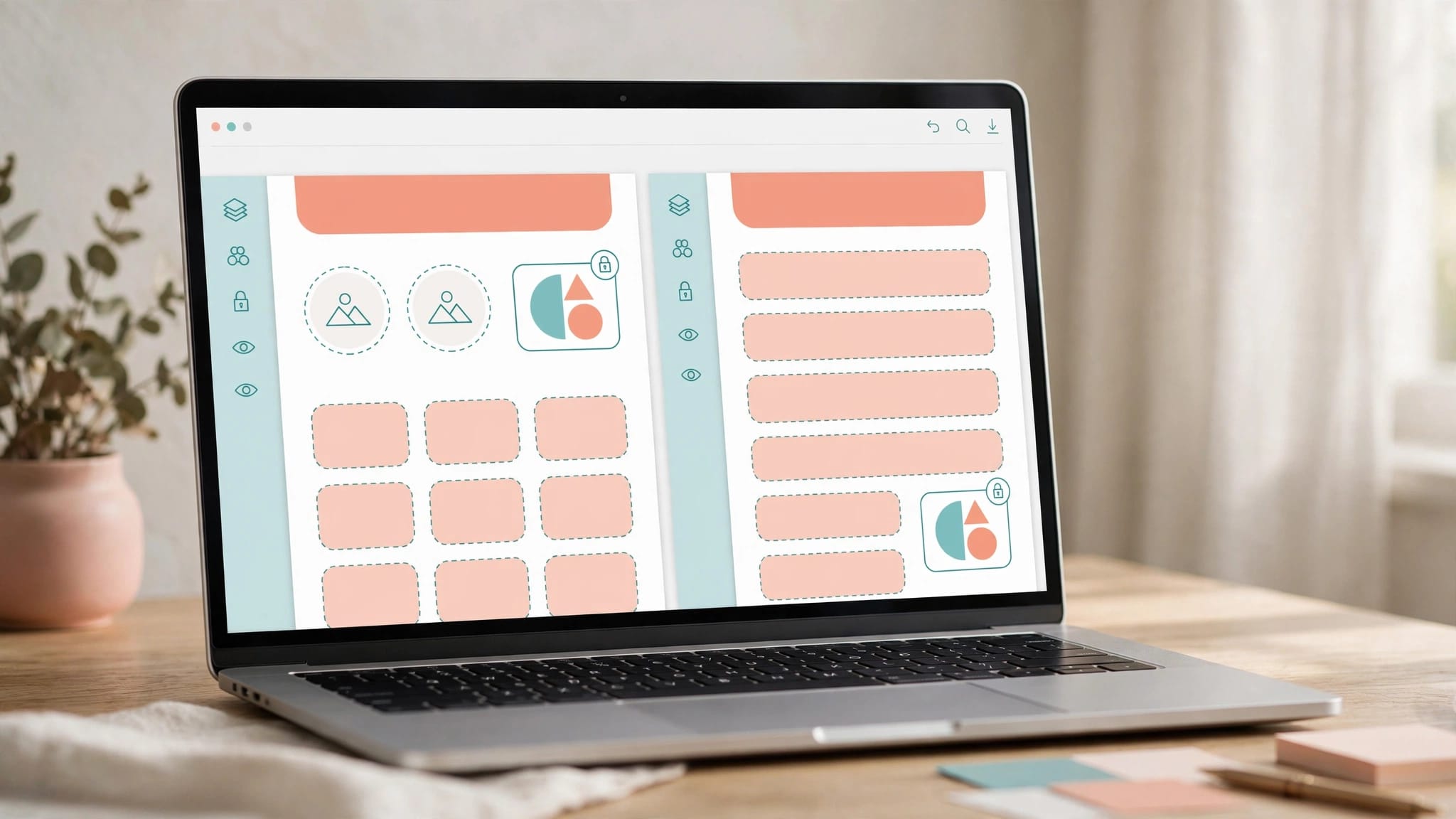
To create Canva templates buyers can edit safely, group related decorations, lock fixed elements, and leave clear spaces for text and images. Build in room for longer content, then test a separate copy as a buyer would.
A layout that looks perfect with your sample text can fall apart when someone adds a longer business name. The same safe editing workflow applies to list templates: decide what buyers can change and what should stay in place.
Key takeaways
- Keep editable text and image frames separate from decorative groups.
- Use locks to prevent accidental movement, while recognizing buyers can unlock elements in their copies.
- Deliver a template link with short instructions, then test replacement text, images, and downloads before selling.
Start with a useful page and clear editing limits
Choose one job for your template: a coach’s worksheet, a salon price list, or a grocery list. Each needs a different balance of writing space and decoration.
Canva’s list templates gallery offers useful context. It contains 4,446 designs, displayed 50 at a time, covering to-do list, grocery, shopping list, price, birthday list, cleaning list, and wish list designs. To-do and cleaning lists need room for tasks and checkboxes. Shopping and grocery lists need space for items and quantities. A birthday list can hold dates and gift ideas.
Price lists form the largest group, with designs for a beauty salon, spa, bakery, fashion businesses, and wedding photography businesses. Leave room for beauty services descriptions, and give product designs space for item names. Some designs carry a Pro label, which indicates Canva’s paid tier.
The gallery includes a separate “Printable lists” category. Buyers can customize and print these designs, or select “Create a blank List” to begin without a preset layout.
Names typically combine color, style, and list type, such as “Minimalist and Simple Grocery List.” An elegant design might use pink or beige, while a modern layout could use black and white or a warm brown palette. These descriptions communicate appearance, but your product also needs a clear editing promise.
Before designing, write down what buyers can change. For a salon price list, that might include the business name, services, prices, and brand colors. Decorative borders and spacing should need little attention.
Choose the final page size now. Converting a printable worksheet into a social graphic later usually requires rearranging content.
Templates sell better with art that fits the theme. If you make your own, plan it first with this guide to purposeful AI art, or use art you’re licensed to build products with.
Free: the AI Art Starter Pack
Want art to practice with? Grab a free pack of AI art images you can use to make your first printable, template or freebie, no prompting required.
Build Canva templates with room for real content
A buyer-ready layout needs enough space for realistic changes. Canva text boxes won’t automatically push neighboring elements down when copy grows.
Give text a defined space
Create separate text boxes for headings, descriptions, and prices. Avoid building columns with repeated spaces inside one text box, because different fonts change character widths.
For a price list, keep prices in their own right-aligned column. Leave a clear gap between that column and service names.
Use one main headline box rather than separate boxes for every word. Otherwise, changing a short heading into a longer one creates extra repositioning work.
Set a visible boundary for each text area through spacing. Leave unused room below headings and between content blocks. If a title allows two lines, design around two lines.
Use frames for replaceable artwork
Add a Canva frame where buyers should replace a photo or illustration. A replacement image can fill the existing frame without requiring buyers to rebuild its dimensions.
However, the crop still needs attention. A tall portrait and a wide landscape won’t show the same amount of their subjects.
Keep faces and important artwork away from the edges. Also, avoid placing essential text inside replaceable images.
When creating AI art in PLR products, use coordinated illustrations for covers, dividers, and worksheets to create a playful, cohesive look. Keep replacement artwork visually consistent so the full set feels connected.
Group, layer, and lock the structural elements
Organize the design before locking it. Otherwise, you’ll repeatedly unlock pieces to correct alignment or stacking order.
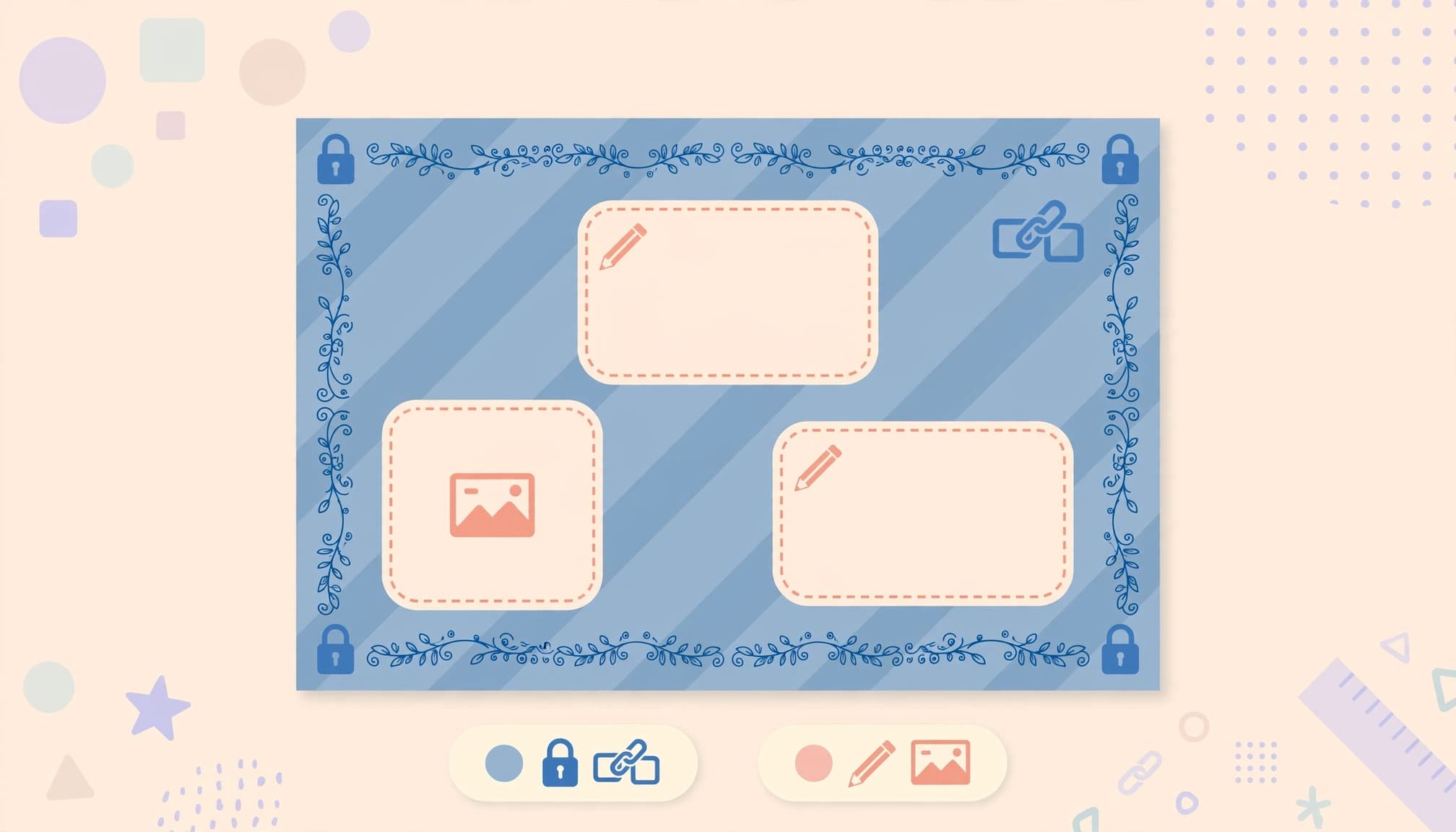
Group decorations, then arrange layers
Select related decorative elements together, then choose Group. A corner illustration with several leaves and shapes should move as one unit.
Keep editable headings outside decorative groups when practical. Buyers shouldn’t need to select a large cluster just to find their business name.
Next, open Position and inspect the layers. Put backgrounds at the back, decorative details above them, and editable text where buyers can select it easily. Canva’s grouping and layering guidance covers these controls.
Remove invisible or unnecessary overlapping shapes. Even a transparent rectangle can make the intended object harder to select.
For repeated rows, duplicate an aligned row rather than rebuilding each one manually. This preserves consistent spacing.
Lock the pieces buyers shouldn’t move accidentally
Select fixed borders, background illustrations, and decorative groups. Use the toolbar’s lock control to prevent accidental edits or movement. Canva documents the available controls in its locking and unlocking instructions.
Leave intended text fields and replacement-image frames editable. A fully locked page creates unnecessary work for someone who only wants to add their details.
A lock is an editing safeguard, not copy protection. Buyers can unlock elements in their own copies.
Label editable areas and explain the handoff
A template needs to explain itself without making the finished page look like an instruction sheet.
Use meaningful placeholder text
Replace vague sample copy with labels such as “Business name,” “Service description,” and “Your website.” These tell buyers what belongs in each area.
Keep labels realistic in length. A tiny placeholder like “Title” hides problems that appear when someone enters a full workshop name.
Put formatting limits on a separate instruction page. Useful wording includes “Keep headings to two lines” or “Replace the photo inside the existing frame.”
Don’t rely on color alone to identify editable areas. Clear labels and strong contrast also help buyers who can’t distinguish subtle color differences.
Add a clean sample page showing the intended result. Buyers can refer to it if they accidentally move something.
Deliver a template link, not editing access to your master
In the source design, select Share, then Template link. Choose Create template link and copy the link for your delivery document.
Keep your master file separate from the buyer’s working copy. Canva’s design-sharing options also include links that let others edit a design, so don’t confuse collaborative access with template delivery.
Include the template link in a short getting-started PDF. Explain what buyers can change, which elements stay locked, and how to duplicate a page before experimenting.
Make the editable-file license part of your product plan
Permission to sell a finished printable doesn’t automatically include permission to distribute its editable source file. This matters when you start with purchased templates, PLR content, or bundled artwork.
The relevant distinction in our PLR license terms guide is the difference between selling finished products and passing along editable files. Your template needs permission for the format you’re delivering.
For a Free-friendly product, use Canva Free fonts and elements alongside uploads licensed for that use. Disclose any Pro assets clearly in the listing and instructions.
Also, add meaningful original work. Your page structure, exercises, instructions, and visual choices should give buyers something beyond a renamed source template.
Test a buyer-style copy before you sell
Keep your polished master untouched. Open the delivery link through a separate account and create the same kind of copy your customer will receive.
Work through these edits in order:
- Replace every placeholder with realistic content. Try a long task description in a to-do list and longer item names in a shopping list.
- Change an allowed font and brand color, then inspect line breaks and contrast.
- Replace each image with both a portrait and a landscape image.
- Duplicate a content row or page, then delete an optional section.
- Download the edited result and inspect every page outside the editor. Preview the black-and-white version for legible text and adequate print contrast.
Pay attention to problems ordinary buyers are likely to encounter. A service name wrapping into the price column needs a wider text area or more row spacing. Shrinking every font isn’t a good default repair.
If a replacement photo covers a heading, correct the layer order in the master. If decorative leaves move separately, group them before locking.
For printable products, print a sample. Pale writing lines and cramped margins can look acceptable on screen but become frustrating on paper.
Finally, repeat the test after fixing the master. An earlier delivery link or an outdated instruction page can leave buyers with a version that still has the problem.
Keep learning
Pair your template with product instructions that reduce confusion, or offer a print-ready version as a fillable PDF workbook. Want to see Canva in action? Here’s how I make AI wall art printables in Canva:
Skip the blank page
The AI Art & Marketing Club gives you fresh art, a product plan and a marketing plan every month, so you always know what to make and how to sell it. Prefer to buy one pack at a time? The shop has themed art packs, prompt packs and bundles ready to customize.
Club and shop art can be used to create new finished products that you sell with commercial, PLR or MRR rights. The original images can’t be resold or given away as-is. Full license terms.
Frequently asked questions
Why can’t buyers select a text box?
It may be locked, covered by another element, or contained in a group. Canva notes that template text boxes are often grouped.
During your setup, keep important text easy to select. Explain any intentional groups in the instructions, rather than expecting beginners to discover them.
Can buyers personalize a list before printing?
Yes. Buyers can change editable wording and other permitted elements before printing. For a grocery list, that could mean adding category headings. For a cleaning list, it could mean changing room names. On a birthday list, buyers may need room to add longer names or gift details.
Keep instructions separate from printable pages so buyers don’t accidentally include them in the finished download.
Make the easiest edits the safest edits
Reliable templates give buyers clear choices without requiring them to rebuild the page. Separate editable content, leave room for longer wording, and protect the structure against accidental movement.
Before publishing, make one more buyer-style copy and complete the intended customization. If that process needs repeated layout repairs, simplify the template before it reaches your customer.
Share On Pinterest!
Want to come back to this later? Save one of these pins to your Pinterest board.


One Comment