

Clear product instructions tell customers what to do, in what order, and how to recognize success. They also explain what to do when something goes wrong, without sending readers on a scavenger hunt.
For beginner creators, a confusing download guide can derail an otherwise useful workbook or AI art bundle. For equipment manufacturers, unclear directions can also create product hazards.
Start with the customer’s next action, then build your instructions around the tasks they’ll perform.
Key Takeaways
- Define the intended reader and the outcome of each procedure before drafting. Keep separate tasks in separate procedures.
- Give manuals a predictable structure, then include only the sections that fit the product. Digital products may need access, editing, and printing guidance instead of equipment maintenance details.
- Put prerequisites before the steps, use the names customers see, and describe the result of important actions so readers know when to continue.
- Place safety warnings near the relevant hazard and before the action. Make each warning state the hazard, possible harm, and preventive action.
- Review technical details with equipment specialists, test the instructions with a beginner, and check the finished PDF before release.
1. Start with the reader and the product
Define one reader and one outcome
Describe the intended user before drafting. Include their experience, tools, goal, and likely stumbling point.
A beginner Canva user preparing printable art needs different guidance than a technician servicing industrial equipment. Don’t assume either reader understands your internal terminology.
Then define the outcome of each procedure. “Download a print-ready PDF” gives you a clearer writing target than “Get started.” Keep separate tasks separate: downloading files, editing artwork, and printing shouldn’t become one sprawling procedure.
Collect facts while the product takes shape
For manufacturers, instruction design belongs alongside engineering. Capture parts, costs, assembly details, operating steps, technical data, and design changes during prototyping.
Keep internal costing separate from customer-facing material, but preserve the source information. It helps connect the manual to the actual build.
Digital creators can follow the same habit. Record file types, software requirements, folder organization, and export settings while developing the product. Draft installation instructions and maintenance instructions before shipment to expose missing information while there’s time to fix it.
2. Give product instructions a predictable structure
A complete owner’s manual or set of instruction manuals needs more than a welcome and a few screenshots. Readers should find setup, safe-use, and problem-solving information without reading every page.
Use this sequence as a practical starting point for equipment documentation.
| Manual section | What readers need |
|---|---|
| Cover | Product name, model, manual version, and manufacturer details |
| Table of contents | Clear section names and page references |
| Technical data | Specifications, capacities, dimensions, and required supplies |
| Introduction and safety | Intended use, limitations, and relevant hazards |
| Installation instructions | Preparation, assembly, connections, and initial checks |
| Operation instructions | Normal use, controls, stopping, and shutdown |
| Maintenance | Cleaning, inspections, replacement tasks, and storage |
| Troubleshooting guide | Symptoms, checks, adjustments, and escalation |
| Exploded parts view | Component locations and numbered references |
| Parts list | Matching references, part numbers, descriptions, and quantities |
| Warranty | Applicable coverage, exclusions, and claim instructions |
The sequence gives readers a dependable map. Warnings must also appear where the hazard occurs, even when you have a separate safety section.
Warranty information mainly belongs in manuals for products sold to external customers. Internal equipment documentation may not need it.
For digital products, adapt the user manual structure rather than copying irrelevant sections. A workbook may need access instructions, editing guidance, printing directions, and usage terms instead of maintenance schedules and replacement parts.
Include only sections that help customers use the actual product.
Instructions are only half of the handoff. The other half is getting the files to the buyer, so check your digital product delivery setup and make your downloads accessible to every customer.
Free: the AI Art Starter Pack
Want art to practice with? Grab a free pack of AI art images you can use to make your first printable, template or freebie, no prompting required.
3. Write steps customers can follow without guessing
Put prerequisites before the procedure
Before step one, explain what the customer needs: tools, files, permissions, supplies, or a particular starting condition. Don’t reveal halfway through that they need something unavailable.
Next, write actions in the order customers perform them. Start steps with concrete verbs such as “Open,” “Select,” “Attach,” or “Save.”
Keep each numbered step focused on one action or a tightly connected action pair. Place any required caution before the action it governs. Readers shouldn’t discover a restriction after they’ve already completed the risky step.
Name things consistently and show the result
Use the exact names customers see on controls, folders, and screens. If a button says “Download,” don’t call it “Export” elsewhere.
After an important action, describe the expected result. A saved file, visible indicator, or completed connection helps readers know they’re ready to continue.
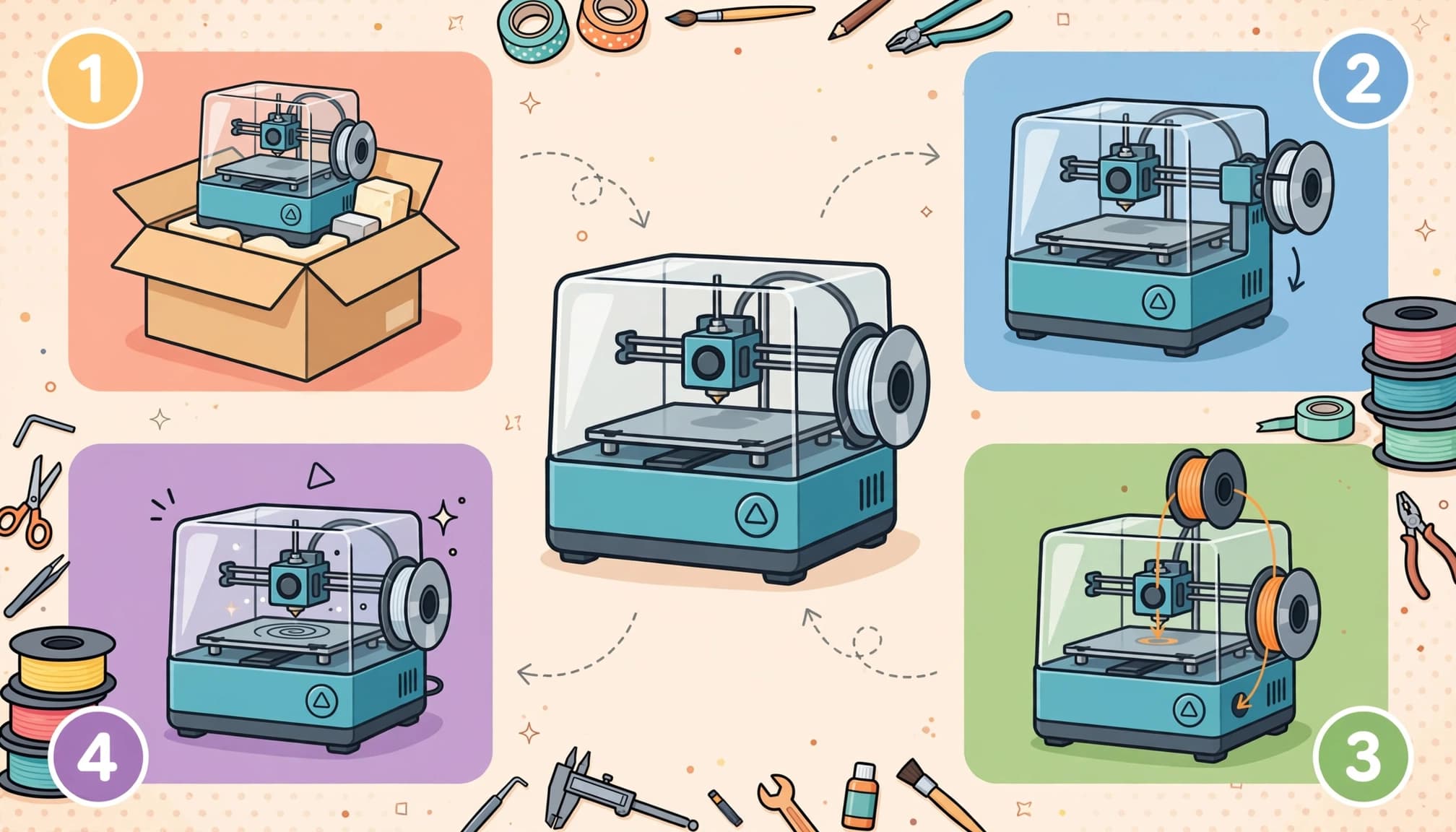
Use visuals when position, orientation, or appearance matters. Crop screenshots around the relevant control and place them beside the matching step. Decorative images can add personality, but task instructions still need precise words.
4. Make safety warnings short and useful
Safety language needs more care than a cheerful “Please be careful.” It should identify the hazard, explain the possible harm, and state the action that prevents it.
Address hazards relevant to the product, including electric shock, moving components, hot surfaces, and foreseeable improper use. Don’t bury the preventive action in background information.
The Consumer Product Safety Commission’s guide to developing consumer product instructions is a federal reference for manufacturers preparing consumer documentation. Its guidance supports treating instructions as part of product development.
Place general hazard guidance near the front. Repeat task-specific warnings immediately before the relevant operation or maintenance step.
A warning placed after a hazardous step arrives too late to guide that action.
Keep warnings visually distinct, but don’t rely on color alone. Text must remain understandable in grayscale and on a small screen.
Have someone who understands the equipment review every warning. Instructions can’t compensate for an unsafe design, missing safeguards, or unsupported claims about what users can safely repair.
5. Worked example: downloading a Canva design as a PDF
A useful procedure includes a starting point, ordered actions, and an observable finish. Downloading a Canva design provides a straightforward example for digital creators.
Starting point: Your design is open in Canva. Use PDF Standard when you need a PDF for digital viewing.
- Select Share in the editor.
- Choose Download from the available options.
- Open the file-type menu and select PDF Standard.
- Select the pages you want to include.
- Select Download, then open the saved PDF.
The final instruction matters. Opening the PDF lets the customer inspect the page order, text, and images before sharing it.
If the file isn’t immediately visible, look in the browser’s download list or the device’s Downloads folder. If pages are missing, repeat the download with the intended pages selected.
Notice the task boundary: editing the design and preparing a commercial print file are separate jobs. Keeping them separate makes the instructions easier to scan and reduces accidental setting changes.
6. Explain upkeep and troubleshooting separately
Turn maintenance into scheduled actions
Maintenance instructions should name the task, timing, required materials, and safe starting condition. Cover cleaning, inspections, parts replacement, and long-term storage where relevant.
Use product-specific intervals supported by the engineering documentation. Avoid vague directions such as “service regularly.”
Also distinguish tasks customers can do from work reserved for qualified technicians. List replacement consumables by their approved identifiers, and explain the signs that replacement is necessary.
For digital resources, ongoing care may mean preserving an untouched original, organizing edited versions, and keeping the instruction file aligned with product updates.
Connect each symptom to a useful response
A troubleshooting guide should help readers decide what to check and what they can adjust. Start with observable symptoms rather than broad categories such as “Problems.”
For downloadable products, common access issues fit a compact table.
| Symptom | What to check | Next action |
|---|---|---|
| Downloaded ZIP won’t open | Whether the archive has been extracted | Use the device’s extraction function before opening its contents |
| Edited file appears unchanged | Whether the original or edited copy is open | Open the saved edited version |
| Printed page is cropped | Paper size and scaling settings | Match the intended paper size and inspect print preview |
For equipment, include a clear stopping point. The owner’s manual should explain when readers must stop diagnosing and contact a technician for repair.
7. Pair exploded diagrams with usable parts lists
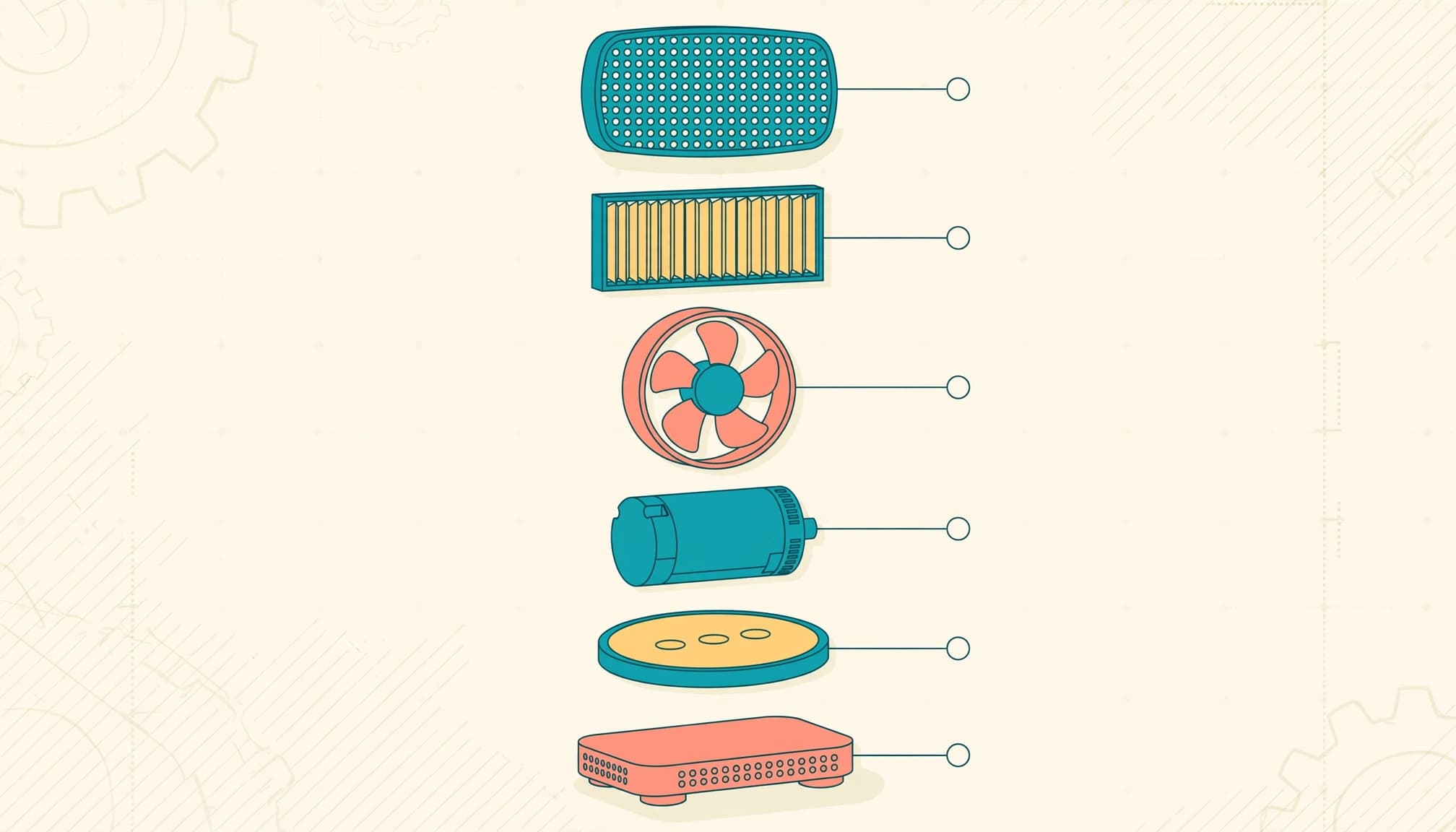
An exploded parts diagram shows how components relate to one another. Its real value comes from the accompanying parts list.
Assign each illustrated component a reference number. Match that number to an itemized entry containing the part number, description, and quantity.
Keep the diagram reference distinct from the orderable part number. One identifies a position in the illustration; the other identifies the replacement component.
Build both outputs from the same approved parts data. Otherwise, an updated drawing can quietly drift away from an outdated list.
Also identify which model or revision the diagram covers. Similar-looking components aren’t automatically interchangeable.
Technicians should be able to locate a component, identify the correct replacement, and determine the required quantity without guessing. For digital bundles, apply the same organizational principle through a file inventory that explains each folder and included format.
Keep diagrams legible at the size readers will actually view them.
8. Build a repeatable review and release workflow
A modular Excel and Word system can make documentation more consistent without requiring specialist publishing software.
Use Excel to organize model data, parts, service tasks, and revision records. In Word, maintain reusable sections for related instruction manuals, including shared procedures, hazard guidance, and document formatting. Customize each owner’s manual for the machine it actually accompanies.
Technical writers use heading styles to generate tables of contents and index tags for pertinent terms. Include the words customers search for, including common names that differ from engineering terminology.
Then have equipment specialists review technical accuracy. Separately, ask a representative beginner to follow the instructions without coaching. Note where they pause, reread, or choose the wrong action.
Before release, inspect the finished PDF on different screens and, when relevant, on paper. Give each version a clear identifier and archive superseded copies.
For licensed workbooks, customization also means rewriting instructions and exercises around your buyer’s task. Changing colors and a logo won’t fix an unclear sequence.
CPSC’s manufacturing best practices also direct manufacturers to its instruction-development guide when communicating proper product use.
Keep learning
If you sell editable files, see how to build Canva templates buyers can edit without broken layouts and fillable PDF workbooks. Want to see how I turn AI art into printables in Canva? Watch how to sell AI wall art:
Skip the blank page
The AI Art & Marketing Club gives you fresh art, a product plan and a marketing plan every month, so you always know what to make and how to sell it. Prefer to buy one pack at a time? The shop has themed art packs, prompt packs and bundles ready to customize.
Club and shop art can be used to create new finished products that you sell with commercial, PLR or MRR rights. The original images can’t be resold or given away as-is. Full license terms.
Frequently Asked Questions
What should product instructions include?
Include the information customers need to set up, use, maintain, or troubleshoot the product. Adapt the sections to the product, such as access and printing guidance for a digital workbook or safety and parts information for equipment.
How do you write clear procedure steps?
List prerequisites first, then put actions in the order customers perform them. Use concrete verbs, match the names shown on controls or screens, and state the expected result after important actions.
Where should safety warnings go?
Place general hazard guidance near the front and repeat task-specific warnings immediately before the relevant operation or maintenance step. Each warning should identify the hazard, possible harm, and action that prevents it.
How should a troubleshooting guide be organized?
Start with observable symptoms and show what to check and what action to take next. Equipment instructions should also tell readers when to stop diagnosing and contact a technician.
Make the next action obvious
Useful product instructions connect a clear action with a recognizable result. A dependable structure, accurate visuals, and practical troubleshooting help customers keep moving without guesswork.
Build the instructions alongside the product, then test them with someone who doesn’t already know the answers. The strongest final edit is often removing an assumption your customer shouldn’t have to make.
Share On Pinterest!
Want to come back to this later? Save one of these pins to your Pinterest board.





3 Comments