
Make accessible digital downloads by starting with structured text, adding media alternatives, and testing the exported files. Customers should be able to use your products with screen readers, keyboards, magnification, and other assistive technology.
For creators, that means looking beyond a polished cover or attractive workbook layout. Usability in accessible digital content matters inside the file and throughout the purchase process, so start with the format before decorating the pages.
Key Takeaways
- Build accessibility into your editable source file, then test the exported download.
- Include meaningful image descriptions, readable text, and captions or transcripts for relevant media.
- Give customers clear format information, accessible delivery links, and a way to report problems.
Plan Accessible Digital Downloads Before Designing
Digital accessibility helps people with visual, hearing, motor, and cognitive disabilities use your content. It also helps customers reading on small screens or watching lessons without sound.
The four WCAG accessibility principles are perceivable, operable, understandable, and robust, known as POUR. Customers must be able to perceive information, operate controls, understand content, and use it with different technologies.
Choose formats customers can adapt
Choose accessible formats that fit the content and customer needs. Use tagged PDFs when fixed page layout matters. For reading-heavy products, EPUB, DOCX, or HTML may suit customers who need easier resizing and navigation. However, no format guarantees accessibility.
For prompt packs, include selectable text rather than screenshots. For printable planners, consider a digitally fillable version with labeled fields.
When adapting purchased content, our PLR license terms guide explains editing and redistribution permissions. Permission to sell a finished PDF doesn’t necessarily include permission to distribute editable source files.
Plan beyond the file itself
Accessible digital learning has four connected phases: production, distribution, infrastructure, and implementation. Together, they make up a digital learning ecosystem. Your document, delivery email, hosting platform, and customer support all affect access.
For courses and coaching resources, Universal Design for Learning adds three principles: Representation, Action and Expression, and Engagement. Offer different ways to receive information and complete activities, such as reading instructions instead of relying only on video.
Build Readable Documents and Accessible PDFs
Structure text before styling it
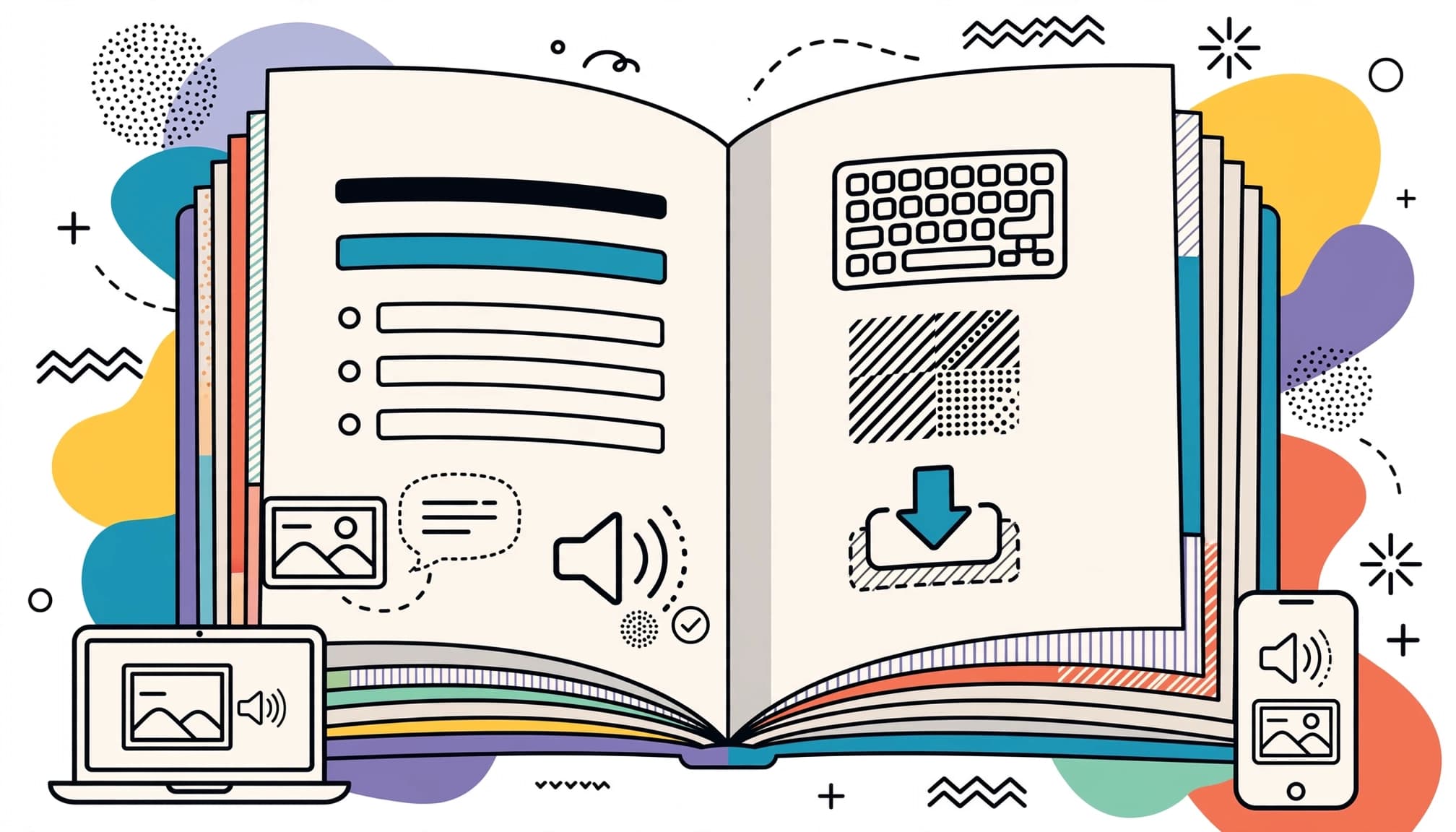
To create accessible documents, use actual heading styles in Word or your authoring tool. Making text large and bold doesn’t identify it as a heading for assistive technology.
Keep headings in a logical hierarchy. Use real lists, descriptive links, and simple tables with identified headers. Avoid layouts that scatter instructions across floating text boxes.
NCDPI recommends body text of at least 12 points in documents and 24 points in presentations. Also, allow comfortable spacing and avoid decorative fonts for lengthy instructions.
Check color contrast against W3C’s minimum contrast guidance: at least 4.5:1 for most text. Large text needs 3:1, meaning at least 18-point regular or 14-point bold. Pair color cues with words or symbols.
Export a tagged PDF, then repair it
Use this sequence when preparing a workbook:
- Run the source application’s accessibility checker and fix identified issues.
- Export with document structure tags enabled rather than printing to PDF.
- Inspect headings, reading order, language settings, links, and form labels in the exported file.
- Test navigation and read-through with assistive technology.
A scanned workbook needs OCR before its text becomes searchable and selectable. Adobe Acrobat Pro, ABBYY FineReader, and Tesseract offer OCR.
Test OCR with the document’s actual language before relying on it. Then correct recognition errors, add structure, and review reading order. Selectable text alone doesn’t make a PDF accessible.
If you build workbooks, these steps pair well with how to create a fillable PDF workbook buyers can use.
Free: the AI Art Starter Pack
Want art to practice with? Grab a free pack of AI art images you can use to make your first printable, template or freebie, no prompting required.
Describe Images and AI Art With Purpose
Alt text communicates an image’s meaning or function. Describe what matters in context, rather than listing every visible detail.
For an AI art bundle, distinguish the files by subject, style, and useful visual differences. Provide image descriptions in a separate document so customers can choose artwork without opening every file.
Descriptions stored alongside standalone PNG or JPG files won’t automatically become alt text everywhere customers use them. Add alt text again when placing images in documents or product pages.
For charts, state the main finding and provide the underlying data in accessible text or a table. For instructional screenshots, explain the action in the surrounding text.
Mark purely decorative images as decorative in formats that support it. Otherwise, screen readers may announce unnecessary filenames.
AI-generated descriptions need human review. They can invent objects or miss details that explain the image’s purpose.
Add Captions, Transcripts, and Audio Description
Video downloads need accurate, synchronized captions that include speech, speaker identification when needed, and meaningful sounds. Review automatic captions for names, terminology, and timing errors.
Open captions are burned into the video and always visible. Closed captions can be toggled on or off. Published caption text can also be indexed by search engines, although a private download isn’t automatically searchable.
Include a caption file, such as SRT or WebVTT, alongside the video when the delivery player supports it. Explain which file customers should open or import.
Provide transcripts for audio lessons and useful text alternatives for video content. However, a transcript doesn’t replace synchronized captions.
Audio description narrates important visual details for people who are blind or have low vision. In a screen-recorded tutorial, describe the button’s name and action aloud rather than saying “click here.”
Make Download Delivery Accessible Too
Customers need to reach the product before they can use it. Your listing, checkout, confirmation email, and download page all belong in the accessibility workflow.
State which files buyers receive, whether they’re editable, and which software they require. Describe tested features precisely, such as “tagged PDF with labeled fillable fields,” rather than promising universal accessibility.
Use descriptive links for downloads, such as “Download the workbook PDF.” Also, keep keyboard focus visible and label checkout fields and error messages clearly. WCAG 2.2 AA is a useful design target for storefronts.
Offer individual files alongside ZIP bundles when practical. Use meaningful filenames and include plain-text instructions for opening the package.
For social promotion, add alt text and captions where supported. Capitalize each word in hashtags, such as #ThrowbackThursday, so screen readers can recognize word boundaries.
Customers can ask about available formats before buying. Creators can reduce that extra work by providing an accessible sample and a clearly named support route.
Test Downloads With Assistive Technology
Run automated checks on the finished files
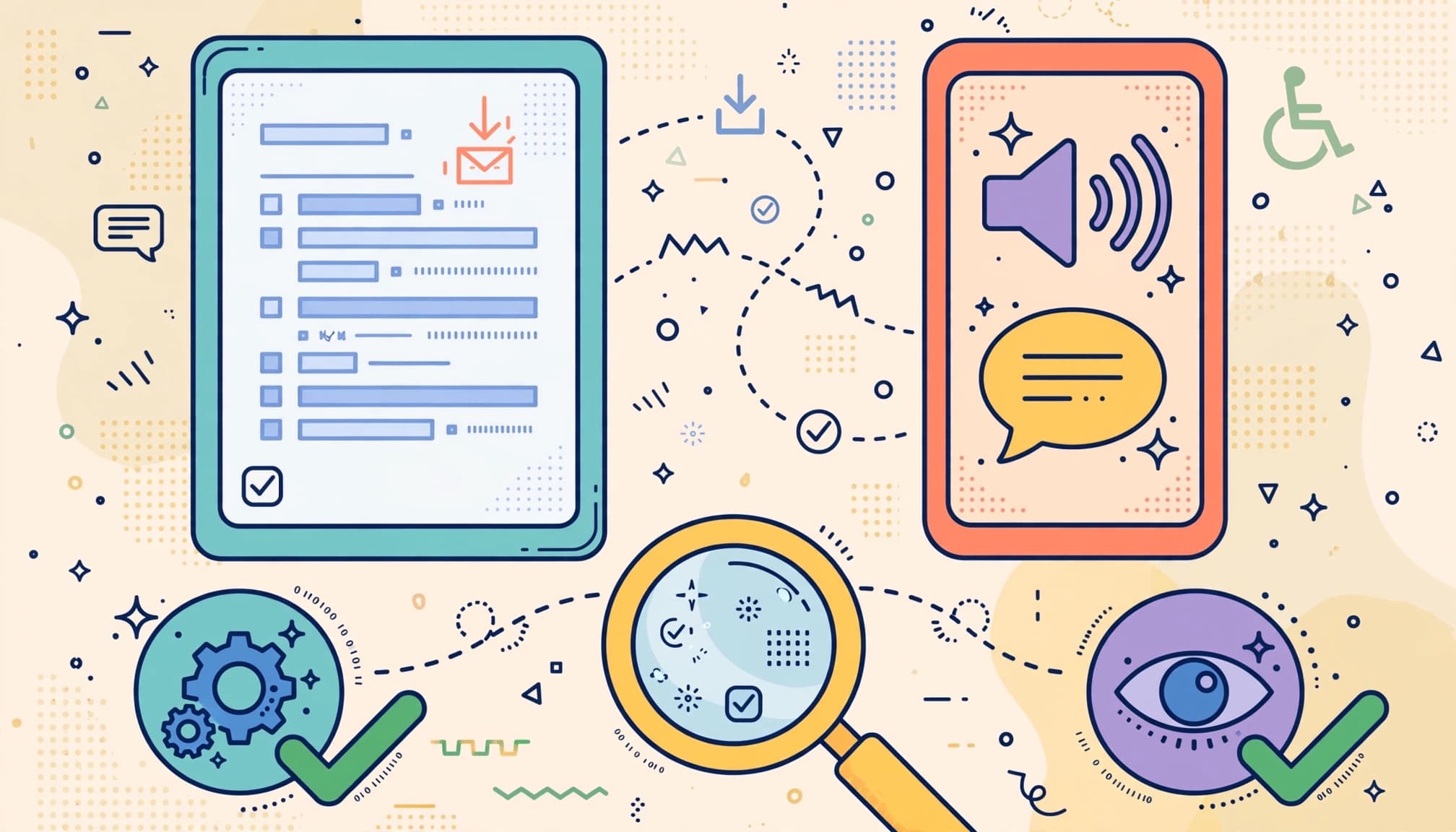
Word, PowerPoint, and Adobe Acrobat include accessibility checking features. WAVE helps identify issues on web pages, including delivery pages.
Run checks after major edits and again after export. Conversion can remove tags, change reading order, or leave fields without useful names.
Automated checkers cannot catch every issue, so always perform a manual assessment too. A checker may confirm that alt text exists without knowing whether it describes the image accurately.
A passing checker result doesn’t prove that a customer can complete the workbook.
Follow a customer’s actual task
Test opening the download, navigating headings, following links, and completing fields without a mouse. Also, enlarge text and inspect whether content overlaps or disappears.
Try at least one screen reader. NVDA is an open-source Windows option, and JAWS is a paid Windows product. VoiceOver is available on Mac, and TalkBack is available on Android.
Use heading navigation and listen to the reading order. Check whether instructions reach the listener before the related field or activity.
When possible, include disabled users in user testing and compensate them for their time. If customers report a barrier, ask which file and task caused it. Don’t require them to disclose a diagnosis before you help.
Keep learning
Writing good alt text starts with knowing what an image is for. This guide to purposeful AI art helps you plan images with a clear job, and clear product instructions help every buyer get started. Here’s the video version:
Skip the blank page
The AI Art & Marketing Club gives you fresh art, a product plan and a marketing plan every month, so you always know what to make and how to sell it. Prefer to buy one pack at a time? The shop has themed art packs, prompt packs and bundles ready to customize.
Club and shop art can be used to create new finished products that you sell with commercial, PLR or MRR rights. The original images can’t be resold or given away as-is. Full license terms.
Accessibility FAQ: Laws, Standards, and Costs
Which US accessibility laws apply?
Section 508 accessibility requirements cover federal agencies’ information and communications technology. Covered websites, email, web documents, and video must be accessible, including required closed captions.
Section 504 covers federally conducted and federally funded programs. It requires disability access and accommodations, including captioning when needed for effective communication with deaf or hard-of-hearing users.
The DOJ’s 2024 ADA Title II rule covers state and local government web content and mobile apps, using WCAG 2.1 AA. Under the current public-sector compliance timetable, deadlines are April 26, 2027, for entities serving 50,000 or more people, and April 26, 2028, for smaller entities and special districts.
These dates aren’t a universal deadline for private shops. Private businesses can have separate ADA obligations.
What applies in the UK?
The Public Sector Bodies Accessibility Regulations, commonly called PSBAR, cover public-sector websites and mobile apps. Requirements include accessibility statements. Private creators may also have duties under the Equality Act 2010.
Can beginners start without expensive software?
Yes. NVDA and Tesseract are free and open source. VoiceOver and TalkBack come with their operating systems.
However, tools don’t replace production time. Budget for caption correction, document repair, and user testing. Building accessible templates reduces repeated work, while complex PDFs may need paid specialist remediation.
Make Accessibility Part of Every Release
Accessible digital downloads work best when accessibility starts in the source file and continues through delivery. Test the customer’s task, not just the appearance of the page.
Begin with your next product: improve its structure, add missing alternatives, and test the final files. Keep the corrected source as your starting point for future releases.
Share On Pinterest!
Want to come back to this later? Save one of these pins to your Pinterest board.




One Comment